

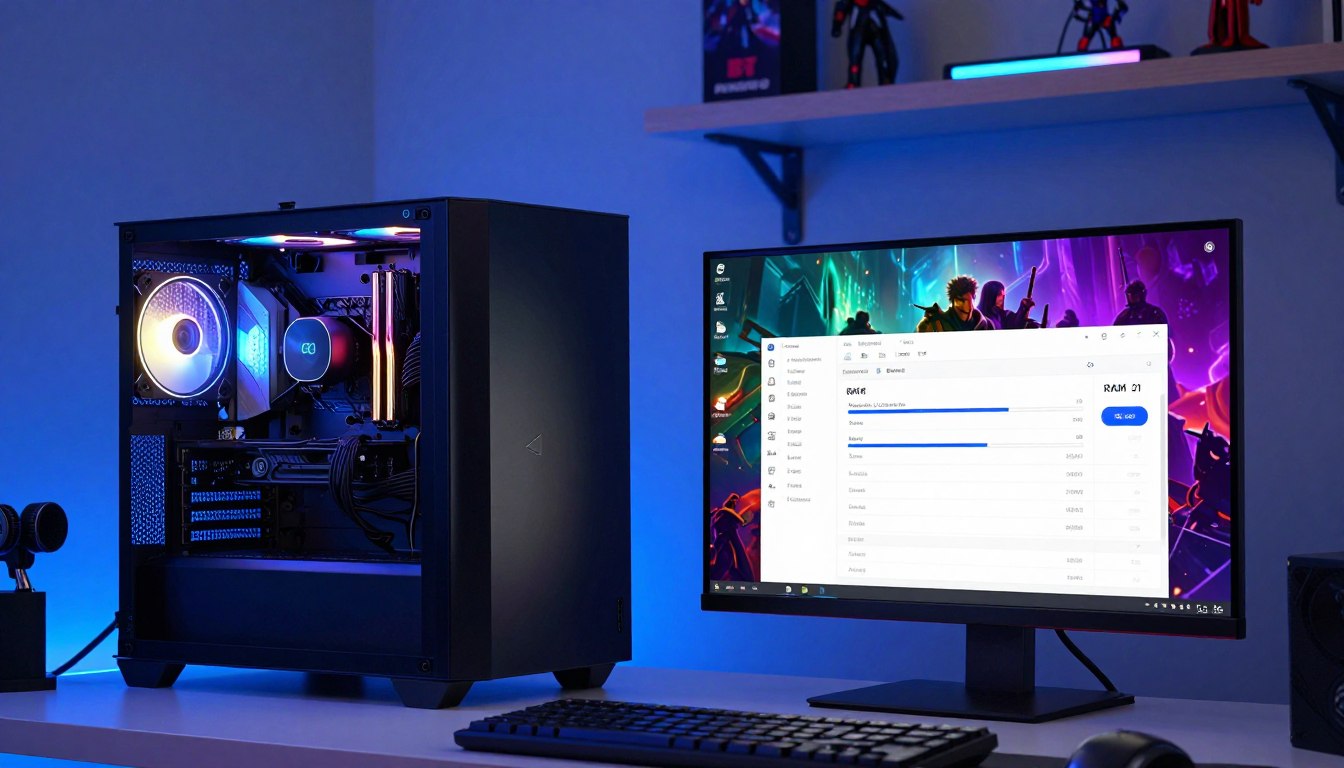
A good memory choice keeps a game and the apps you use alongside it from competing for space, without taking budget away from other parts of your build. If you are building or upgrading one of today’s gaming PCs, RAM temporarily holds game and application data for quick access. Storage keeps files for the long term, even when the PC is off. Memory bandwidth is the amount of data RAM can transfer to the CPU over time.
The right amount depends on the games you play, the software you keep open, and the budget for your build. Extra RAM does not automatically improve gaming performance when the system already has enough. You will find practical ways to choose capacity and compatible memory without paying for a specification your use does not need.
Key Takeaways
- Choose memory based on your games and everyday PC use.
- Keep long-term files on storage, not in RAM.
- Memory bandwidth describes how much data RAM transfers to the CPU over time.
- More RAM does not guarantee higher frame rates.
- Check the platform and kit details before buying.
The useful starting point is how you actually use your PC, not the largest capacity you can afford.
How Much RAM Should I Have in a Gaming PC?
For a new gaming PC in 2026, 32GB is a practical mainstream starting point, while 16GB remains an option for lighter gaming and tighter budgets. Your workload matters as much as the game: a setup with several apps open needs more room than a gaming-only PC.
For a mainstream build, 32GB is the more comfortable capacity choice. A matched 2×16GB DDR5 kit is a common configuration for a new gaming build in 2026. It gives you room for multitasking without making memory an oversized part of the build budget.
When 16GB fits a lighter gaming budget
Sixteen gigabytes can suit entry-level gaming, lighter titles, and a build where every dollar has a job. It is a deliberate budget compromise, not a sign that a gaming PC cannot run modern games. Your available capacity may feel tighter when the game shares memory with other software.
Choose 16GB when you mainly play lighter games, keep few other programs open, or need to reserve money for another component. A 16GB kit can get you started, though moving to a larger kit later may mean replacing modules instead of adding memory. Think about the upgrade path before you settle on that tradeoff.
Why 32GB is a comfortable mainstream choice
For many gamers, 32GB is the sweet spot between cost and everyday flexibility. The extra capacity leaves more breathing room for concurrent tasks, so you can keep a game and other software running without budgeting memory quite so tightly.
Choose 16GB as a planned budget limit, not as a way to stretch a new mainstream build past what you can afford.
That choice is not inherently excessive for a new mainstream gaming PC. It is a useful buffer for changing software and habits over the years, rather than a promise of extra FPS in every game. The right capacity should fit the whole PC budget, not just the memory line.
Why 8GB leaves too little room
Eight gigabytes is a poor choice for a new modern gaming build because the game and the rest of the system have little space to share. Some games may still run, but demanding software can have less room for active data. The result depends on the game and the rest of your use.
If you already own an 8GB system, you do not need to replace it simply because a number is lower. Check how it behaves with your usual games, then decide whether a memory upgrade addresses a real limit. If you are choosing a new mainstream build and can afford the difference, make 32GB your capacity target.
What Do Windows and Game Requirements Actually Tell You?
A Windows minimum tells you what the operating system needs to run, not what a gaming setup should aim for. Minimum means minimum: Windows apps and added hardware may need more RAM, and a game adds its own demand.
Windows 11’s 4GB minimum does not promise a good gaming experience. Game settings, background software, and the other parts of your system affect practical needs. Read each requirement as a rule for that particular workload, not as a standard that fits every PC.
Windows requirements are a floor, not a gaming target
Windows 11 requires at least 4GB of RAM and a storage device of 64GB or larger. That minimum helps identify whether a PC meets the operating system’s baseline. It does not account for the extra memory that your games, browser, and other software may use together.
A Copilot+ PC has a higher floor: at least 16GB of DDR5 or LPDDR5 RAM, plus a 256GB SSD or UFS storage device. These requirements describe a specific class of PC, not the memory target for every computer. Look at the full workload, not one line on an operating system page.
Check the requirements for specific games and apps
Game and application specifications give you more useful context. Cyberpunk 2077 lists 16GB for its recommended 1080p High configuration. Microsoft Flight Simulator 2024 lists 32GB in its recommended PC specification, while Adobe recommends 32GB or more for 4K Premiere workloads.
| Requirement or workload | RAM requirement | Context |
|---|---|---|
| Windows 11 | 4GB minimum | 64GB or larger storage device |
| Copilot+ PC | 16GB DDR5 or LPDDR5 | 256GB SSD or UFS storage |
| Cyberpunk 2077 | 16GB recommended | 1080p High configuration |
| Microsoft Flight Simulator 2024 | 32GB recommended | PC specification |
| Adobe Premiere 4K workload | 32GB or more recommended | 4K video editing |
A game’s minimum specification can help you check whether your system is likely to run it. Its recommended specification is a better reference for a comfortable setup, though your settings and open software still count. Requirements can differ between resolutions and presets, so use the line that matches how you plan to play.
Software makers may list separate needs for different projects or quality settings. A PC used for gaming and creative work must meet the needs of both, not just the game. Check the recommended specification for the game and resolution you care about before treating its minimum as a target.
Which Background Workloads Make More RAM Useful?
The main reason to choose more memory than a game needs is often everything you run beside the game. Open apps share space with active game data, so your everyday habits can change how much RAM feels comfortable.
Consider how many applications you keep open at once, not just your game. A few familiar programs may seem small on their own, yet several running together compete for memory. Your background usage can grow when you add communication, entertainment, or recording tools.
Gaming with everyday apps open
Discord, a browser, a game launcher, a music app, and streaming or recording software can all use memory while you play. The more you leave active, the less room remains for the game and its changing data. Closing an app you are not using can reduce that extra demand without changing your hardware.
- Discord for voice chat and messages.
- A browser with open tabs.
- A game launcher running in the background.
- A music app playing during gameplay.
- Streaming or recording software capturing the session.
These examples do not use a fixed amount of RAM on every PC. Their usage depends on what they are doing and how many tasks you leave active. A browser with many tabs, for example, adds more background work than one left idle with a single page.
Streaming, creative work, and virtual machines
Streaming and recording add tasks beside the game, while editing can keep large media files active. A 4K video-editing workflow is one example that may benefit from more memory. Large creative projects, virtual machines, and professional applications can also make 64GB or more useful.
A virtual machine runs a separate operating environment inside your PC and reserves memory for its work. Several large projects or professional tools may also need room at the same time. Those workloads can justify a higher capacity, but gaming alone does not automatically require it.
Match the memory choice to what you actually do while a game is running. If your sessions usually include only a game and a few light apps, demanding creative workloads may not describe your needs. Consider the heaviest set of apps you routinely keep open at the same time, not just the game by itself.
Does More RAM Improve Gaming Performance?
More RAM is most noticeable when your current capacity is too small for the game and the rest of your open workload. Enough RAM matters first; once the system has enough, a larger capacity does not automatically raise average FPS.
Extra capacity cannot fix every gaming performance problem. Frame rates can remain limited by the CPU or GPU even after a memory upgrade. The symptom and the component causing it matter more than the size printed on a new kit.
When active data exceeds available memory, the system may shuffle some data to storage. That process is slower than using RAM and can contribute to stutters during gameplay. This is one way memory pressure can affect how smooth a game feels, even when the average frame-rate number looks acceptable.
The 1% lows describe the lower-performing portion of gameplay’s frame rates. They can help reveal uneven performance that an average FPS figure hides. If those lows dip while memory is under pressure, the system may be struggling to keep the active workload in memory.
Compare what happens during a slowdown with your system’s memory use. If capacity is near its limit, reduce unnecessary background tasks and see whether the behavior changes. That can help distinguish a memory shortage from a different limit without assuming that the RAM itself is the only cause.
A CPU limit can hold frame rates back when the processor cannot keep pace with the game’s work. A GPU limit can do the same when graphics processing is the bottleneck. In either case, adding RAM may leave the main cause untouched, so match the upgrade to the problem you observe.
Not every stutter points to memory pressure, and not every low frame rate calls for a RAM purchase. Game settings and other system parts can affect performance independently of capacity. If memory is not near its limit during the slowdown, investigate the CPU, GPU, or game settings before buying more RAM.
What Type of RAM Fits Your Gaming PC?
The first compatibility check is whether your motherboard supports DDR4 or DDR5, because those memory generations are not interchangeable. Start with the board, then check the processor platform before choosing a kit.
A DDR4 motherboard cannot be assumed to accept DDR5, or vice versa. The modules differ physically and electrically, so the generation printed on a kit is not a detail to overlook. A DDR5 RAM recommendation for a new build begins with the platform, not the highest specification on a product box.
DDR4 and DDR5 are not interchangeable
DDR4 and DDR5 sticks are built for different motherboard slots and electrical designs. A module that looks close to the right size may still be the wrong type for your system. Buying a newer generation does not make it compatible with an older board.
Check the exact motherboard model’s supported memory type. Then confirm that the processor belongs to a platform that supports that memory generation. Those details tell you whether to shop for DDR4 or DDR5 before comparing capacity, speeds, or appearance.
Check the motherboard and CPU before choosing a type
RAM speed does not simply have to match one number printed for the motherboard. Stable operating speed depends on the CPU, motherboard, BIOS, memory controller, and number of DIMMs installed per channel. A kit may be able to run at several speeds, depending on those parts and settings.
To find the right type, use the exact board model’s supported memory information and the CPU’s supported memory specifications. Those two checks answer whether the generation fits and help set a sensible speed range. A general label such as “DDR5 compatible” is not enough to confirm support for every specific kit.
Memory compatibility is a platform question as well as a module question. The processor’s memory controller and the board’s design work together, while BIOS support can affect available settings. Confirm the exact board model and CPU platform before ordering any memory kit.
What RAM Speed Should You Choose for AMD and Intel?
Choose a memory speed your CPU and motherboard can run reliably, rather than paying automatically for the largest number on the box. Reliable support beats a headline rate, especially when a faster kit costs more without a useful gaming gain.
For most gaming builds, DDR5 speeds above 6400 MT/s are less compelling when the added cost brings only a small gaming-performance gain. A kit’s rated speed above the processor’s standard specification may depend on enabling a profile in BIOS.
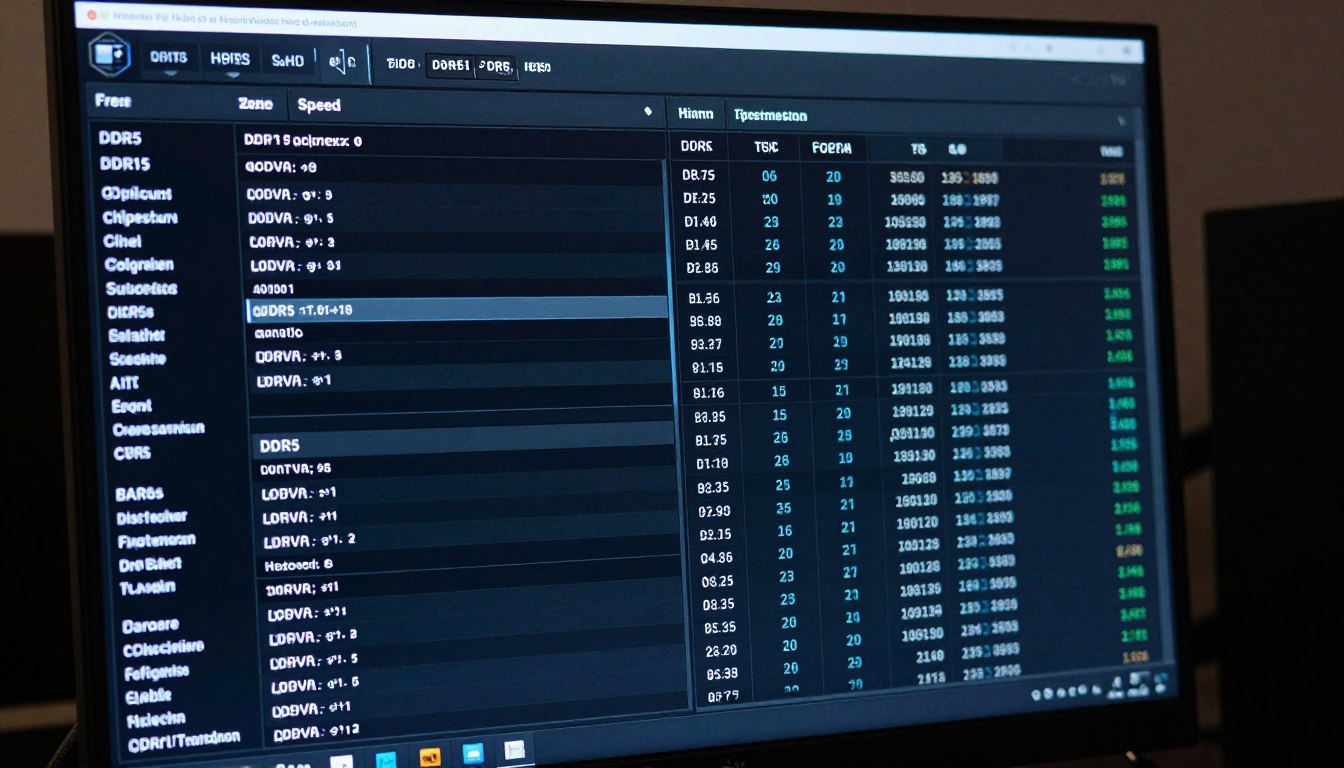
Read memory speed in MT/s
Memory data rate is measured in MT/s, or millions of transfers per second. DDR5-6000, for example, describes a rate of 6000 MT/s. Product listings may use “speed” informally, but MT/s is the precise unit for comparing memory data rates.
A higher advertised rate does not guarantee a faster gaming PC in every setup. The CPU, motherboard, BIOS, and memory configuration all affect which settings can run reliably. Look at the platform’s support before treating the largest available number as the best choice.
Intel platform limits depend on the configuration
Intel Core Ultra 200S Plus systems support DDR5-7200 with one DIMM per channel. Qualifying Intel 200S Boost configurations support memory-overclocking profiles up to 8000 MT/s under that same one-DIMM-per-channel condition.
Those are platform-specific limits, not general targets for every gaming PC. The conditions matter: processor and configuration determine what support applies. A maximum shown for one system does not promise that another Intel setup can use the same rate.
For a typical gaming build, spending more to move beyond 6400 MT/s often brings only a small gaming-performance gain. That can make a lower-rated kit the more practical choice when the price difference is substantial. Consider the whole kit and platform, not the data rate by itself.
Enable a supported XMP or EXPO profile
A DDR5 kit may need a BIOS setting to reach its advertised rate above the processor’s standard specification. Intel XMP 3.0 provides memory-overclocking profiles for compatible Intel systems. AMD EXPO provides profiles for compatible AMD systems.
Use the profile that fits your platform: XMP 3.0 for a compatible Intel system, or EXPO for a compatible AMD system. A profile can make the rated settings easier to apply, but it does not promise stability at every advertised speed. The system’s parts still set the practical limit.
After installation, the BIOS may leave a kit at a standard setting until you select its supported profile. Check the configured data rate in the system rather than assuming the box’s rating is active. Treat the advertised profile as a setting to verify after installation, not a guarantee that every system will run it.
How Should You Install RAM for Best Bandwidth?
Two 16GB sticks in dual-channel mode provide more memory bandwidth than one 32GB stick. Matching capacity is not enough: a single module can leave bandwidth on the table even when total RAM is the same.
A matched two-module kit is generally easier on the memory controller than four populated DIMMs. The exact slot layout depends on the motherboard, so use the board’s instructions to place the modules correctly.
Why a matched pair matters
A 2×16GB kit running in dual-channel mode uses two modules to transfer data across two memory channels. One 32GB stick has the same capacity, but provides less memory bandwidth than that two-stick setup. For gaming, the difference is a useful reminder that capacity and bandwidth describe separate things.
Matched modules are sold as a kit intended to work together. Four sticks can also fill a system’s memory slots, though populating four DIMMs is generally harder on the memory controller than using a matched pair. A two-module configuration is a straightforward choice for many builds.
Find the correct motherboard slots
For a two-stick setup, slots 2 and 4 are typical. Motherboards can use different naming conventions, so the manual is the authority for the correct pair. Putting modules in the wrong slots may prevent the intended channel mode from working.
Once the system starts, check the modules and settings instead of assuming the installation worked as intended. Use this short post-install list:
- Confirm both modules are detected.
- Confirm the full expected capacity appears.
- Confirm the system recognizes the intended channel mode.
- Check that the kit is running at its configured speed.
If a check fails, the system may not be reading one of the sticks or may be using a different setting. Shut down fully before opening the case, and avoid moving modules while the PC is powered. If the system detects only one module, power it down and reseat the kit before troubleshooting further.
How Do You Choose a Compatible RAM Kit?
The best RAM for AM5 gaming is a compatible matched 2×16GB DDR5-6000 CL30-CL32 kit with AMD EXPO support. That is a practical target, not a guarantee that every processor and board will run the same settings.
For AMD AM5 systems, DDR5-6000 CL30-CL32 is a common speed-and-timing target. Stability depends on the individual CPU, motherboard, BIOS, memory controller, and DIMM configuration. A 48GB DDR5 kit is commonly configured as 2×24GB, and still needs CPU and motherboard compatibility checks.
Match the kit to the platform and workload
To find the right RAM, check the motherboard’s supported DDR generation and capacity, then compare CPU and motherboard speed compatibility. Consider the number of modules and whether the kit’s profile suits the platform. These details help narrow the choice before looks or lighting become part of the decision.
AMD AM5 systems commonly use DDR5-6000 for gaming, though stability depends on the processor, motherboard, BIOS, memory controller, and DIMM configuration. For the profile, look for AMD EXPO support on an AM5 kit. A kit’s listed timings, such as CL30 or CL32, are another point to compare among similar options.
Compare dated DDR5 kit examples
In June 2026, listed prices varied across kits and configurations. The examples below show why capacity, timings, profile support, and price all belong in the comparison. They are dated reference points, not current price claims.
| Kit | Capacity and configuration | Speed, timings, and profile support | Approximate listed price in June 2026 |
|---|---|---|---|
| TeamGroup T-Force Vulcan | 32GB, 2×16GB | DDR5-6000 CL38 | About $181 |
| G.Skill Trident Z5 RGB | 32GB, 2×16GB | DDR5-6000 CL32-38-38-96, Intel XMP 3.0 only | About $236 |
| G.Skill Trident Z5 Neo RGB | 32GB, 2×16GB | DDR5-6000 CL28-36-36-96, XMP 3.0 and AMD EXPO | About $280 |
| TeamGroup T-Force Vulcan | 64GB, 2×32GB | DDR5-6000 CL38 | About $166-390 across color versions |
| Corsair Vengeance RGB | 32GB, 2×16GB | DDR5-6400 CL36-48-48-104, XMP and EXPO | About $210 |
Also listed in June 2026, the TeamGroup Delta RGB 16GB kit uses two 8GB modules, runs at DDR5-6000 CL38-38-38-76, and cost about $115. Budget 32GB DDR5-6000 kits were about $150-181, while 16GB DDR5-6000 kits started at about $115.
For another dated comparison, 32GB DDR5-5600 kits were listed at about $92-97 in June 2026. Prices can differ across models and versions, so compare the exact configuration rather than the brand name alone. A lower price is useful only if the kit fits your platform and workload.
Check the generation, capacity, platform support, and memory profile as one set of requirements. A kit that misses one of them is not a compatible choice for your build.
Use this four-point purchase checklist:
- Verify the DDR generation.
- Confirm motherboard and CPU support.
- Match XMP or EXPO to the platform.
- Compare total capacity and price for the intended workload.
Use dated prices as a comparison point, then verify the exact kit and platform support before checkout.
Conclusion
A balanced gaming PC needs memory that fits the way you play, not an oversized kit chosen for its headline number. Your everyday multitasking and the games you care about should shape the decision, while the rest of the build still deserves room in the budget.
More memory is useful when your actual workload needs it. A larger number alone is not a reliable shortcut to better gameplay, and an expensive speed rating is not automatically the best choice for your system.
Before buying, set the amount you want to spend on the PC as a whole. Decide what matters most for your games, then keep memory in proportion to the other parts. Set the CPU and graphics-card budget first, then reserve a realistic share of the remaining build budget for RAM.
FAQ
Is 2TB RAM possible?
Yes, some workstation and server systems can support terabytes of memory, but ordinary gaming PCs generally do not. The CPU and motherboard set the supported limit, and that limit varies by platform. Two terabytes is far beyond what most gaming setups need. Check the specific platform’s maximum if you are building a workstation or server rather than a standard gaming PC.
Is it better to have more RAM or faster RAM?
Get enough capacity for your game and open apps first; once that is sufficient, faster rated memory may offer smaller gains. A high data rate is useful only if your CPU and motherboard can support the setting reliably. For a gaming PC, a compatible kit that meets your workload is a stronger choice than paying extra for speed while leaving too little capacity.
How do I know which RAM to buy?
Check the motherboard’s supported DDR generation and capacity, the CPU’s memory support, and the module configuration. Then choose a kit with an XMP or EXPO profile that suits your platform. These checks help rule out a physically incompatible generation or a kit whose settings do not match your system. Compare the capacity and total price against the work you plan to do.
Is 32GB RAM overkill for gaming?
No, 32GB is not overkill for a new mainstream gaming PC in 2026. It provides more room for multitasking than a budget 16GB setup, especially when you keep other apps open beside a game. That extra capacity does not guarantee higher average frame rates when a game already has enough memory, but it can make the system more comfortable to use.
How much RAM do you really need in 2026?
For mainstream modern gaming in 2026, 32GB is a practical starting point; 16GB suits lighter or entry-level gaming. Your games, apps, and budget determine which makes sense for your PC. A gaming setup that also handles demanding creative work may need more than a lighter gaming-only system. Choose for your regular workload, not an imagined maximum.
How much RAM does Windows 11 need?
Windows 11’s minimum is 4GB, but that is not a gaming recommendation. Windows apps and added hardware can need more memory, and games add their own demands. A PC can meet the operating system minimum without having enough room for comfortable gaming and everyday multitasking. Consider the full workload rather than treating the minimum as a practical target.
Is 64 GB RAM overkill in 2026?
For gaming alone, 64GB is usually more than you need in 2026. Video editing, virtual machines, large creative projects, and professional applications can make 64GB or more useful. The decision depends on what you run at the same time, not just the game title. If your PC mostly plays games and runs a few light apps, that extra capacity may not help much.
If you want to dig further into what is nand flash technology memory in ssds, read our What Is NAND Flash Technology Memory in SSDs guide.
If you want to dig further into how to not be addicted to technology steps fo, read our How to Not Be Addicted to Technology Steps fo guide.
If you want to dig further into how can technology be used practical applicat, read our How Can Technology Be Used Practical Applicat guide.